
How to use Merora
Everything Merora can do, and how. Pick what you need.
Reminders in one sentence
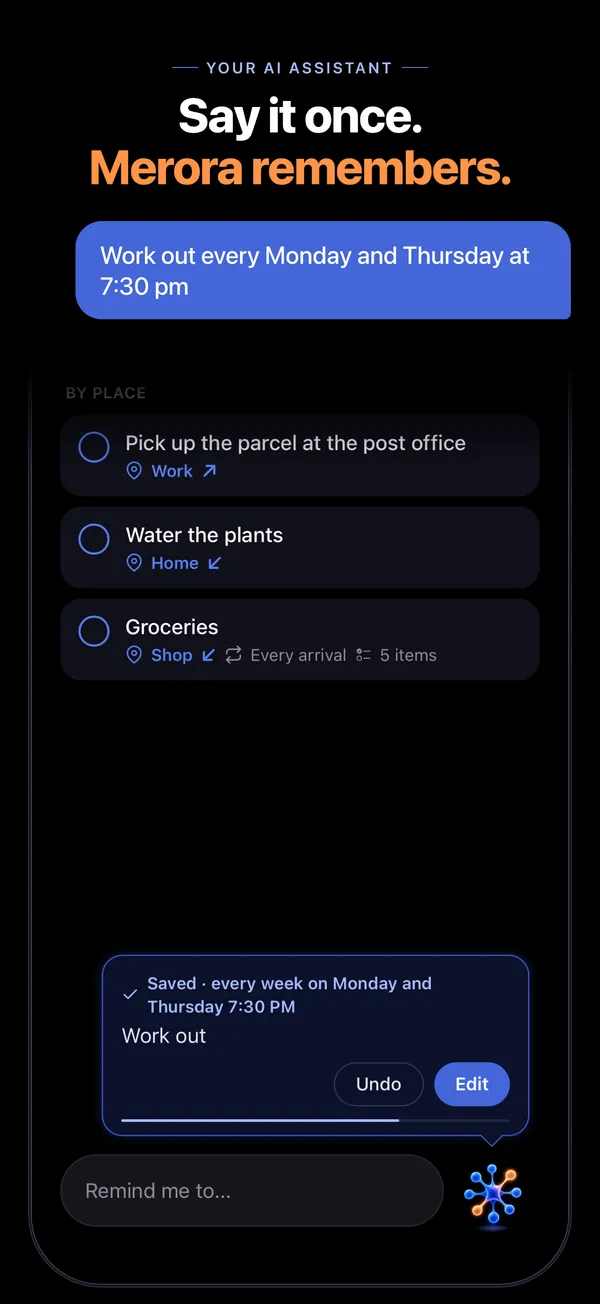
Tap Merora at the bottom right, say the sentence and send it with the arrow. Or type it into the “Remind me to…” field. Merora works out what, when and where by itself and saves the reminder.
- “Tomorrow at 9, book a dentist appointment”
- “When I get home, start the washing machine”
- “Work out every Tuesday and Thursday at 7”
Once it’s saved, Merora shows what it wrote down. If something’s off, tap Edit, or tap Undo and say it again.
The microphone only listens when you turn it on. An OpenAI language model works out the sentence, so Merora asks for your consent the first time. You can change it in Settings › Privacy › AI sentence parsing.
Reminders in one sentence are part of Merora Pro. In the free version, tap + at the top and fill in what, when and where. The reminder rings just the same.
By time
Say a day and a time, or how long from now:
- “Tomorrow at 9, book a dentist appointment”
- “In 20 minutes, turn off the oven”
- “On 15 November at 10, call the bank”
- “Next Tuesday at 9, send the invoice”
A part of the day works too: morning is 9 am, afternoon 2 pm, evening 6 pm and night 10 pm. If the time has already passed today, Merora moves it to the next one. “Call mom at 7” said in the afternoon rings today at 7 pm.
To do it by hand, set the date and time in a new reminder under When.
By place
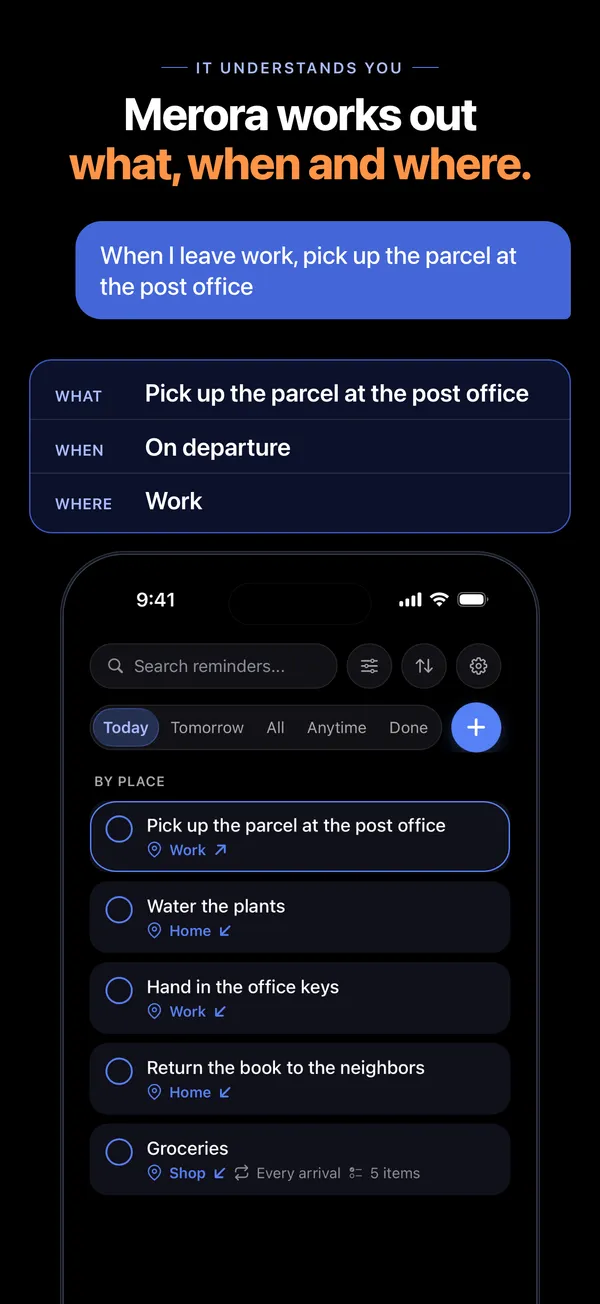
Merora speaks up when you get somewhere, or when you leave:
- “When I get home, start the washing machine”
- “When I leave work, go to the post office”
- “Every time I get home, water the plants”
Save your places in Settings › My places: an address or your current location, a name, an icon and a radius. The reminder goes off when you enter or leave the circle. In a sentence, just say the place’s name.
To use a place for one reminder only, edit the reminder and choose Where › Other Location… It won’t be saved to your places.
Your iPhone watches the places itself, so it works even with the app closed and goes easy on the battery. Only arriving at or leaving a saved place is sent to our server.
In your iPhone Settings, Merora needs location access set to “Always” and Precise Location turned on. Without them, your iPhone won’t wake Merora when you arrive or leave. iOS decides exactly when it reports an arrival or departure, so a reminder can come a little later.
Time and place together
Combine a time and a place in one sentence:
- “Tomorrow, when I get to work, call Michael”
- “Every Friday from 6 pm, when I’m home, water the plants”
The reminder speaks up when you arrive or leave, but only after that time. If you’re already there when the time comes, it speaks up once you leave and come back.
Repeating reminders
Say how often:
- “Take my pills on weekdays at 7”
- “Water the plants every other day at 8”
- “Take out the recycling every other Monday at 6 pm”
- “Team meeting on the first Monday of every month at 10”
- “Wish Peter a happy birthday every year on 9 October at 8”
Without “every”, only the nearest days count. “Clean the flat on Saturday and Sunday at 10” rings this Saturday and Sunday and then stops. Set an end with a date (“tidy my desk every Friday at 3 pm until the end of the year”) or a number (“meditate every day at 9 pm, repeat 10 times”).
By hand, edit the reminder and use the Repeat row: every day, week, month or year, or Custom… with chosen days of the week or month and an end. Place reminders also have On every arrival and On every departure.
When you change a repeating reminder, Merora asks whether to change Only This One or This and All Following.
Anytime
Things with no time or place, like “Read that book someday” or “Buy a new screwdriver”, go to the Anytime tab. They don’t ring and wait until you have time. Tap one to add a time or place and it joins the others.
Lists
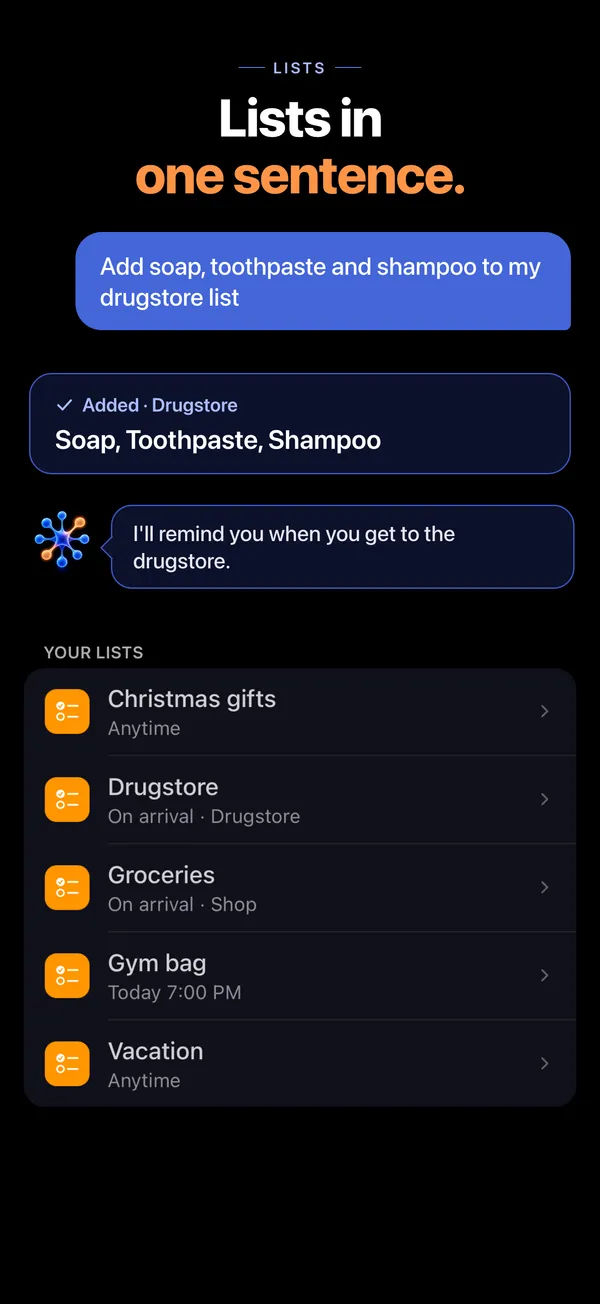
A list keeps several things together, like groceries or things to pack. Create one in Settings › Lists › New list. Give it a time or a place and it speaks up: a grocery list at your Shop place rings when you walk into the shop. A list without a time waits in the Anytime tab.
Check things off in the shop. When you then tap Done, ticked items disappear and the rest wait for next time. A permanent list stays even when everything is ticked off, and you add items as you go. One list holds up to 50 items.
With Merora Pro, add things in one sentence. Say the word list or the list’s name, and what goes in it: “Add bread, rice and bananas to my shopping list.” If you don’t have that list yet, Merora offers to create it with the items already in it.
Routines
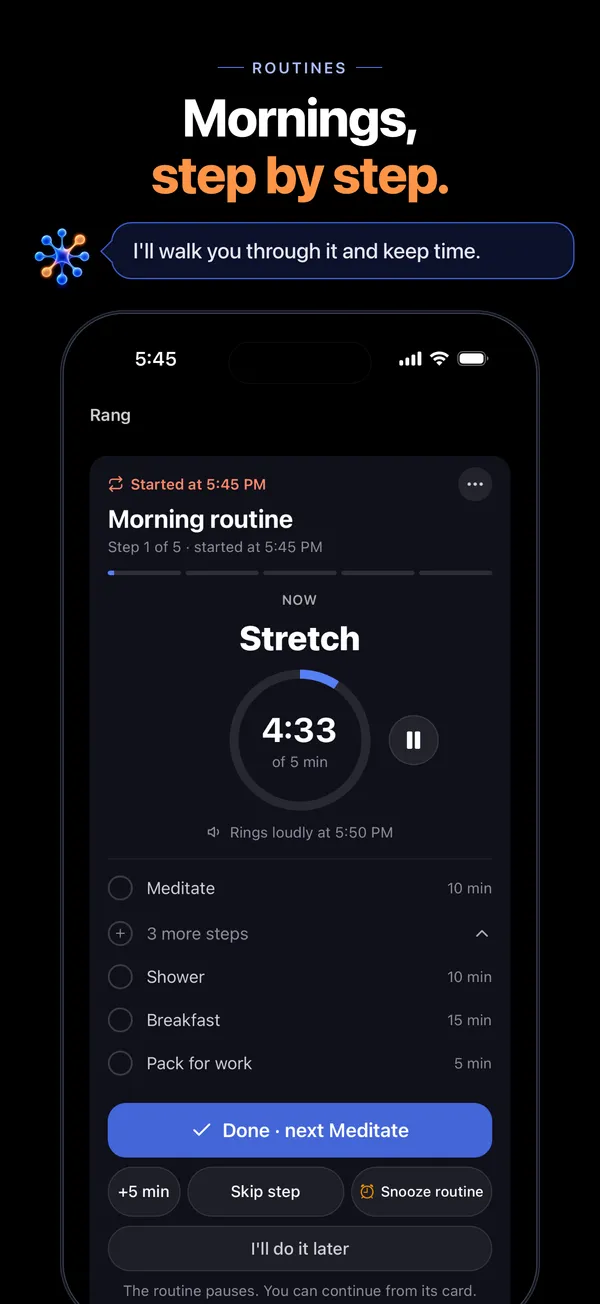
A routine is a set of steps, like a morning routine: stretch, shower, breakfast. Merora walks you through it and keeps time on the steps that have a duration.
Create one in Settings › Routines › New routine. Merora can’t build routines from a sentence yet. Each step can have a Duration and Alert at the end, loud if you like. Steps follow one another: the next starts when you check off the previous one. Give the routine a start time or a place. Without a time, it waits in Anytime and you start it whenever you like.
When a routine rings, tap Start. Then tap Done, or use Skip step, +5 min, Snooze routine and I’ll do it later. A repeating routine can also Skip today.
Routines are part of Merora Pro.
Linked reminders
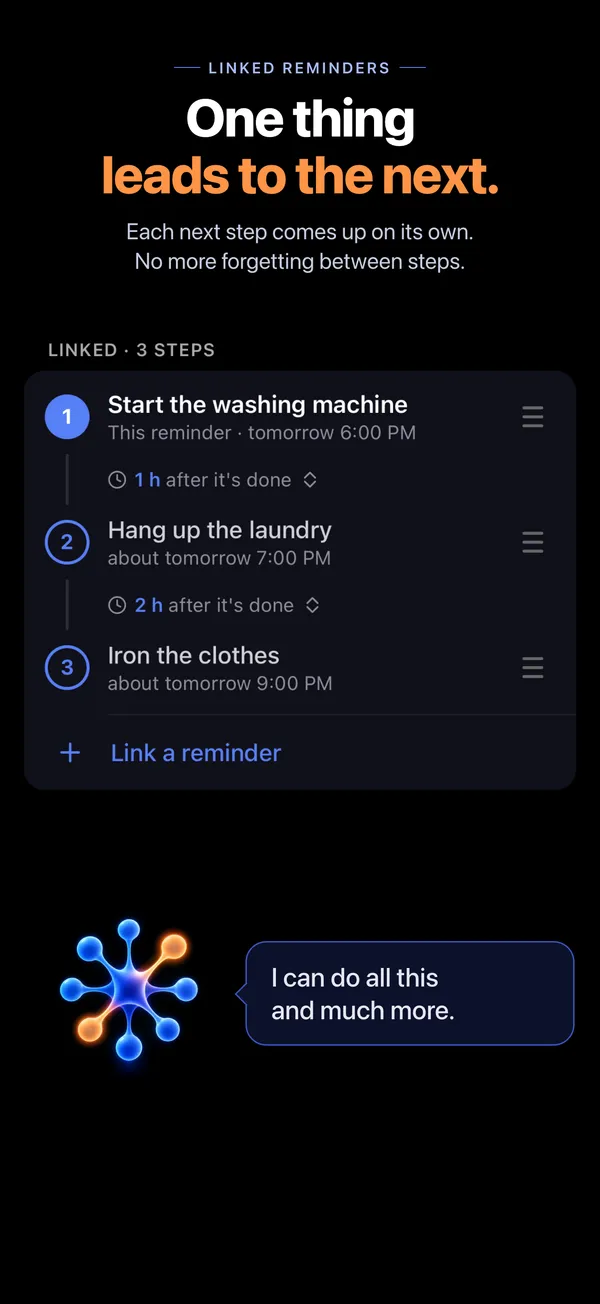
One thing leads to the next: start the washing machine, hang up the laundry, iron. The next step is scheduled once you mark the one before it as done.
Edit a reminder, tap Link a reminder and pick what comes next. Then choose when: Right after it’s done, In… (say, in an hour), Next day at…, or At a set time…, but not before the previous one is done. Each step can have its own place.
Linked reminders are part of Merora Pro.
When a reminder rings
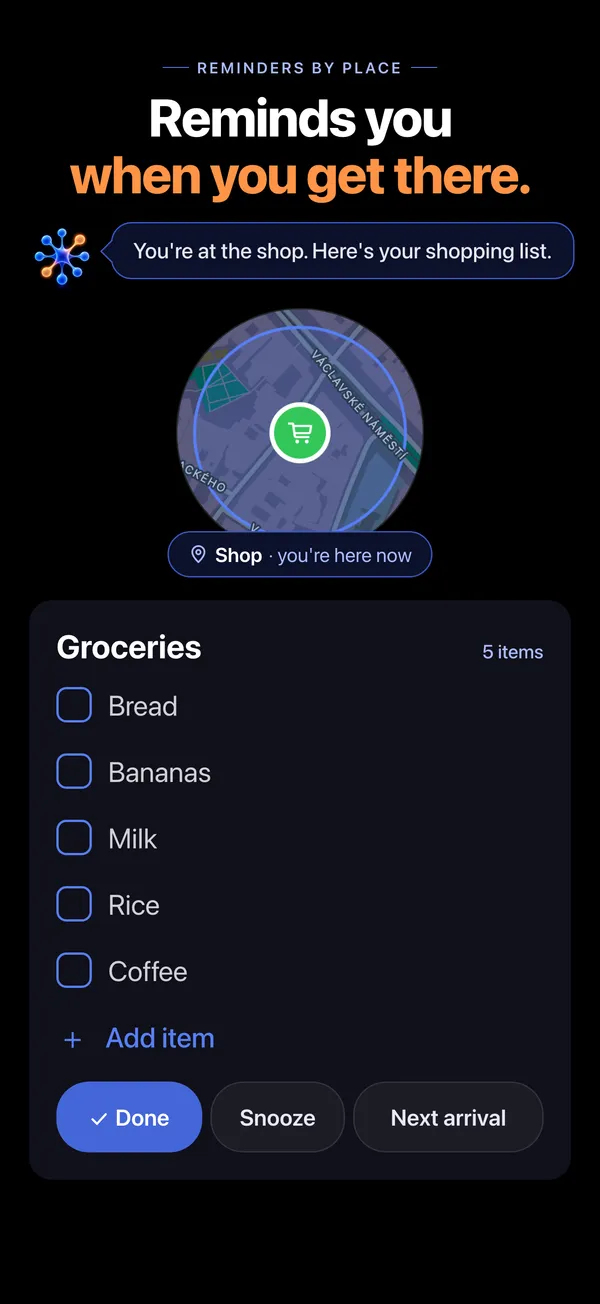
When a reminder rings, tap the notification. Merora asks what to do with it:
- Done: the reminder moves to Done.
- Snooze: it rings again in a little while. Press and hold the button to pick 5, 10 or 30 minutes, or your own time. Change the default snooze duration in Settings › Notifications.
- Next arrival or Next exit for place reminders: it rings once you leave and come back, or once you come back and leave again.
- Skip for repeating reminders: this occurrence is skipped and the next one comes as planned.
- Decide later: the reminder stays on the main screen as rung, and you deal with it when you have time.
When several ring at once, put them all aside with Decide all later.
Ring like an alarm
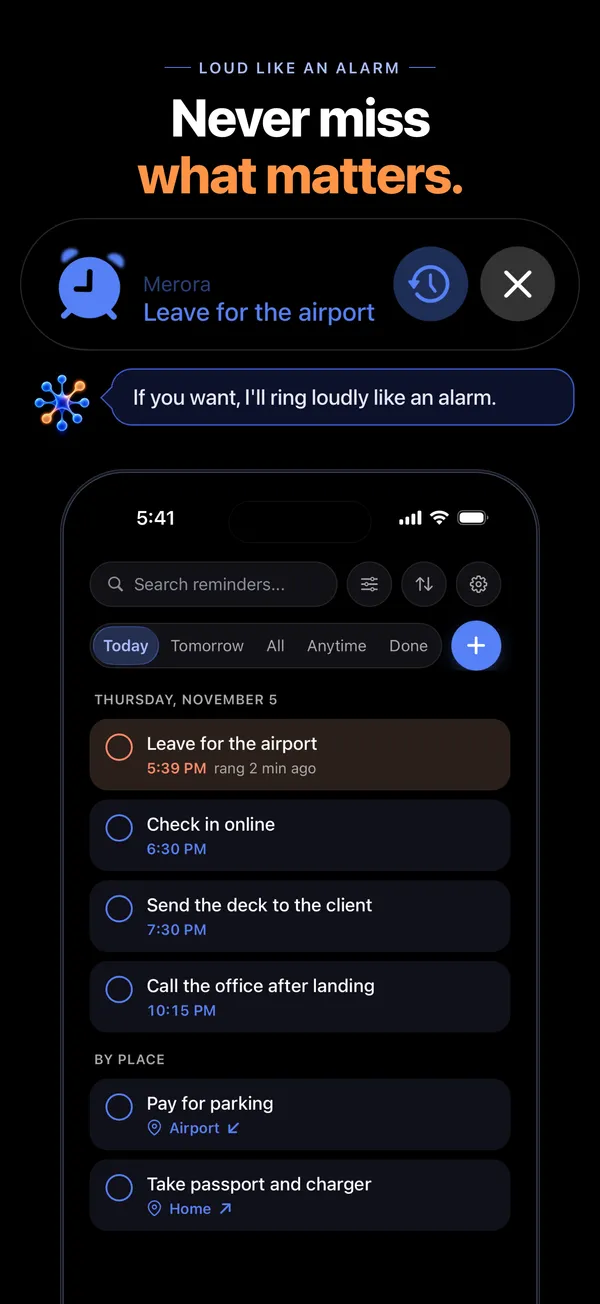
A reminder can ring like an alarm, even in silent mode and Do Not Disturb. For things you can’t miss.
Turn it on for all reminders in Settings › Notifications › Ring like an alarm, or for a single reminder when you edit it, under Ringing. When it’s off, you get a plain notification that follows your phone’s settings.
Loud reminders need access to alarms. If they don’t ring, check in your iPhone Settings that Merora has Alarms turned on.
To quiet them for a while, use Silence loud alerts at the top of the app’s Settings: for 1, 2 or 4 hours, or until morning.
Merora Pro and the free version
Free, you get reminders by time and place, loud alerts like an alarm, lists, repeating reminders and labels.
Merora Pro adds:
- Merora itself: reminders in one sentence, by voice or by typing,
- adding to lists by voice,
- step-by-step routines,
- linked reminders.
Merora Pro costs $7.99 or €7.99 a month, or $63.99 or €63.99 a year, and the first week is free. You buy the subscription in the App Store, which shows the price in your currency. Merora reminds you the day before the free week ends. To pay nothing, cancel at least 24 hours before it ends.
Cancel in your iPhone Settings › your name › Subscriptions, or in the app in Settings on the Merora Pro card › Manage subscription.
When the subscription ends, nothing is deleted. Reminders by time and place, alarms and lists keep working, and you add new reminders by hand with +. Routines and linked reminders stay in your list but don’t ring until you turn Merora Pro on again.
Good to know
- Tabs: Today, Tomorrow, All, Anytime and Done. To move a done reminder back, tap its circle.
- Search, filter and sort: search looks through titles, places and labels. The filter picks a place, repeating or one-off, at a time or at a place, a label, a type (reminders, routines, lists, linked) and even a date range. Sort by creation date, or by when a reminder rings.
- Labels: like Work or Home, each with its own color. Create them in Settings › Labels and filter the main screen by them.
- “Forgetting anything?”: once a day, at a time you pick, Merora asks a quick question. Turn it on in Settings › Notifications.
- “Open Merora”: if Merora sends you this notification, your scheduled reminders have run out. Open the app so they keep coming.
- Account: sign in with Apple, Google or email and your reminders are on your next phone too. Change the language and time zone in Settings › Account.
- Auto-open keyboard: turn it on in Settings and the app opens with the keyboard ready.
- Offline, you can’t add reminders, by voice or by hand.
- Where Merora runs: on iPhone with iOS 26.1 or later.
- Ideas and bugs: Settings › Feedback opens a board where you can add ideas, vote for other people’s ideas and see what’s coming. Or write to me at riccardo@merora.app. More answers are in Support.